> ## Documentation Index
> Fetch the complete documentation index at: https://trunk-4cab4936-mintlify-e1f0f17e.mintlify.site/llms.txt
> Use this file to discover all available pages before exploring further.
# Managing your Organization
> Manage members, roles, and settings for your Trunk organization.
## Organization Slug and Token
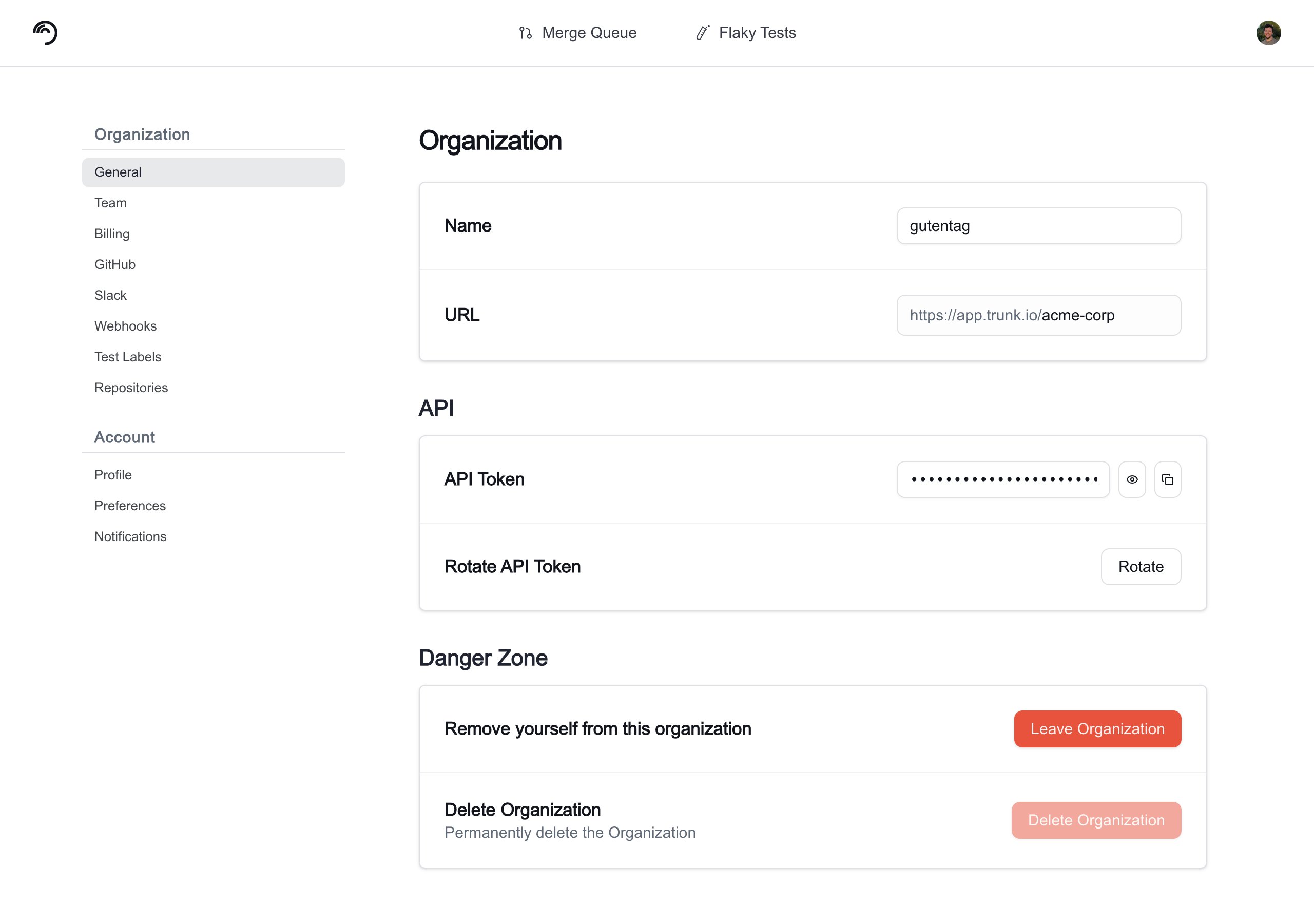
Integrating with Trunk through [Webhooks](../flaky-tests/webhooks/), [APIs](./apis/), or [CLI](/code-quality/overview/cli/getting-started) will require authentication using your organization's slug and token.
You can find your organization slug and token by navigating to **Settings** → **Organization** → **General**.
 ***
## Managing Team Members
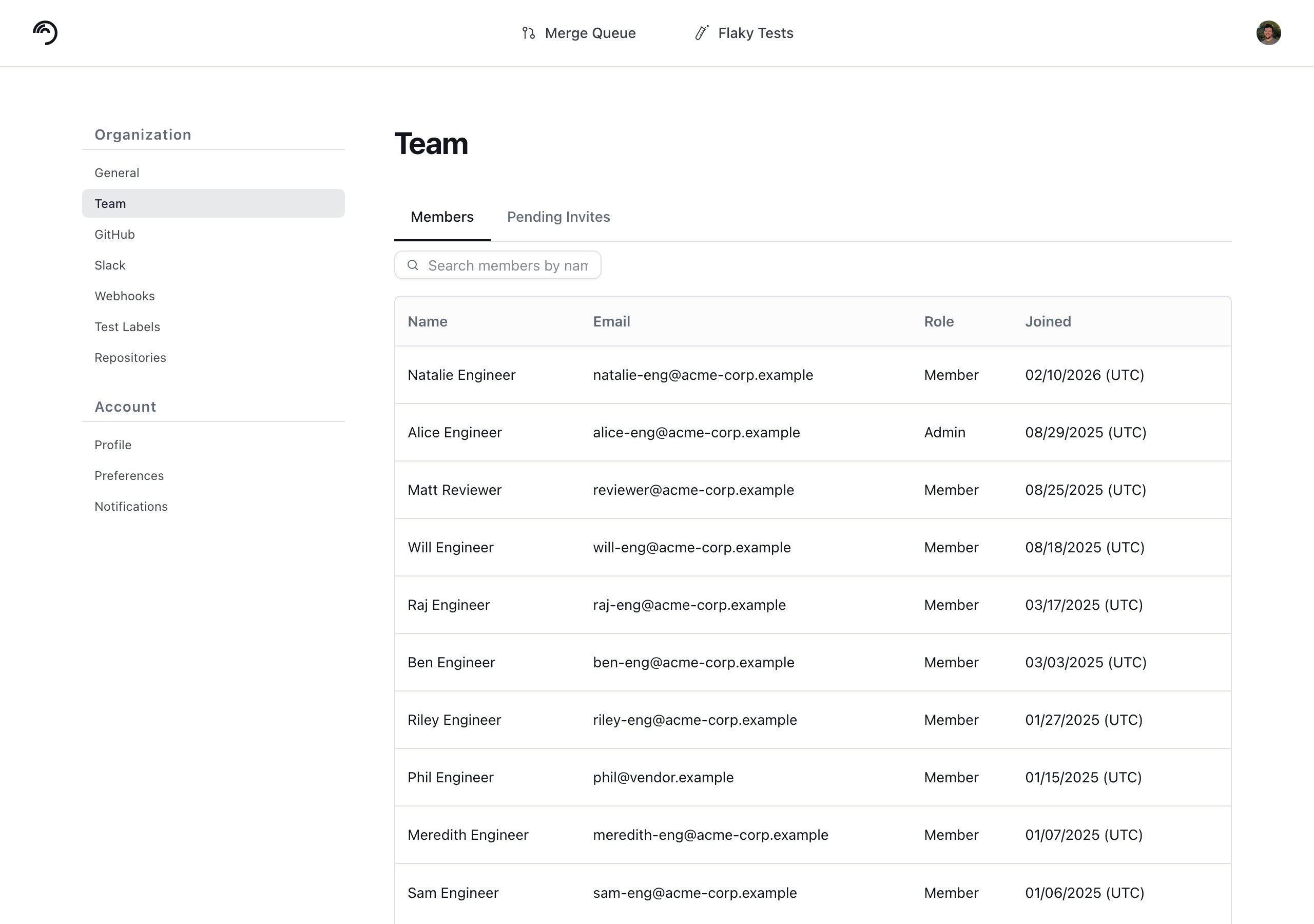
You can manage a team member's role and remove team members by navigating to **Settings** → **Organization** → **Team** → **Members** and clicking on the name of a team member. You can change the role of a team member between member and admin, as well as remove the user from your organization.
***
## Managing Team Members
You can manage a team member's role and remove team members by navigating to **Settings** → **Organization** → **Team** → **Members** and clicking on the name of a team member. You can change the role of a team member between member and admin, as well as remove the user from your organization.
 ### Inviting Team Members
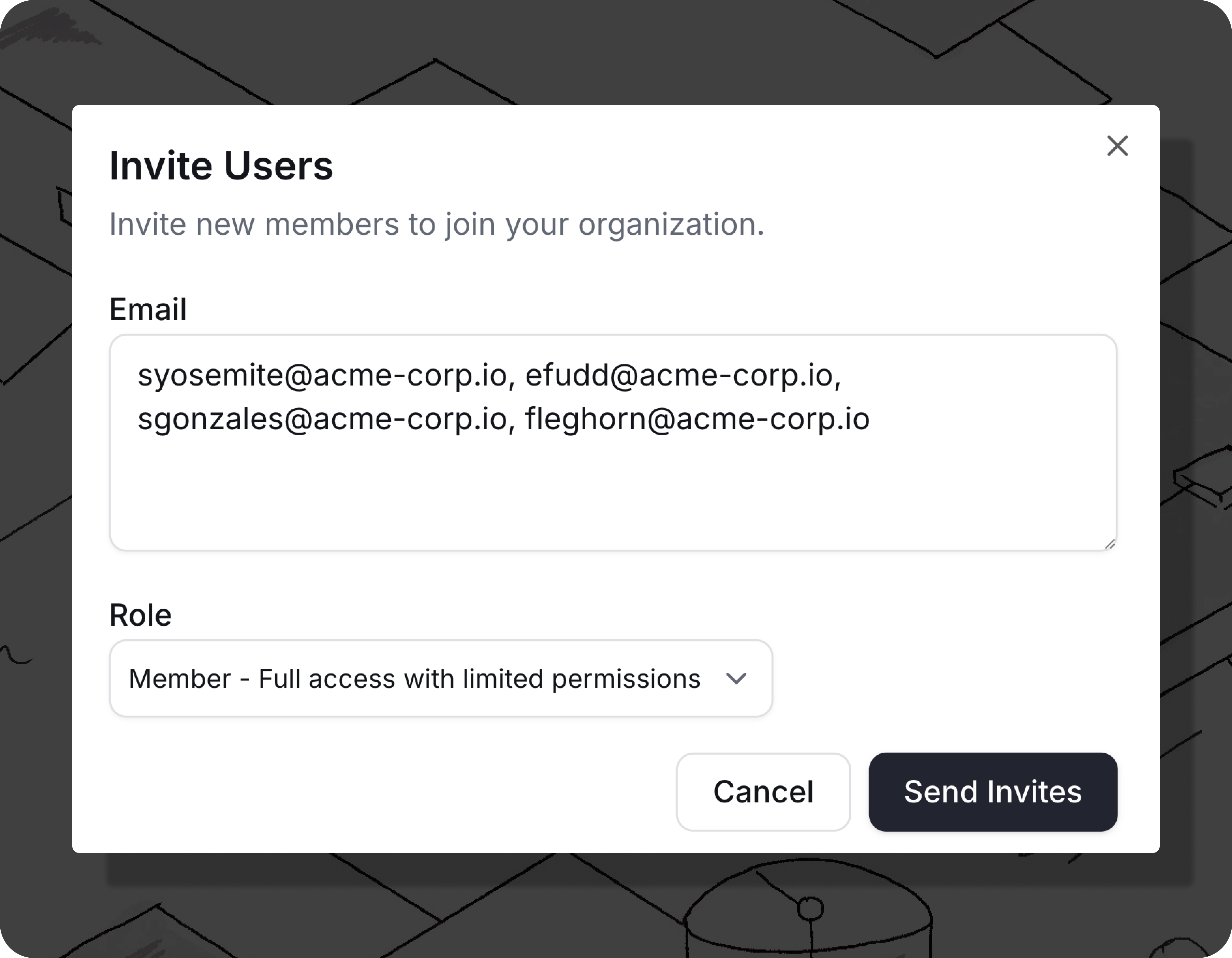
You can invite individual members manually by navigating to **Settings** → **Organization** → **Team** → **Members** and clicking the **Invite Users** button. An email will be sent to the invitee's inbox.
In the form, add comma separated email addresses and select a Role from the drop down. This role will be applied to all users in this invite batch.
Available Roles are:
* **Member**: Full access with limited permissions (default)
* **Admin**: Full administrative access
### Inviting Team Members
You can invite individual members manually by navigating to **Settings** → **Organization** → **Team** → **Members** and clicking the **Invite Users** button. An email will be sent to the invitee's inbox.
In the form, add comma separated email addresses and select a Role from the drop down. This role will be applied to all users in this invite batch.
Available Roles are:
* **Member**: Full access with limited permissions (default)
* **Admin**: Full administrative access
 ### Pending Invites
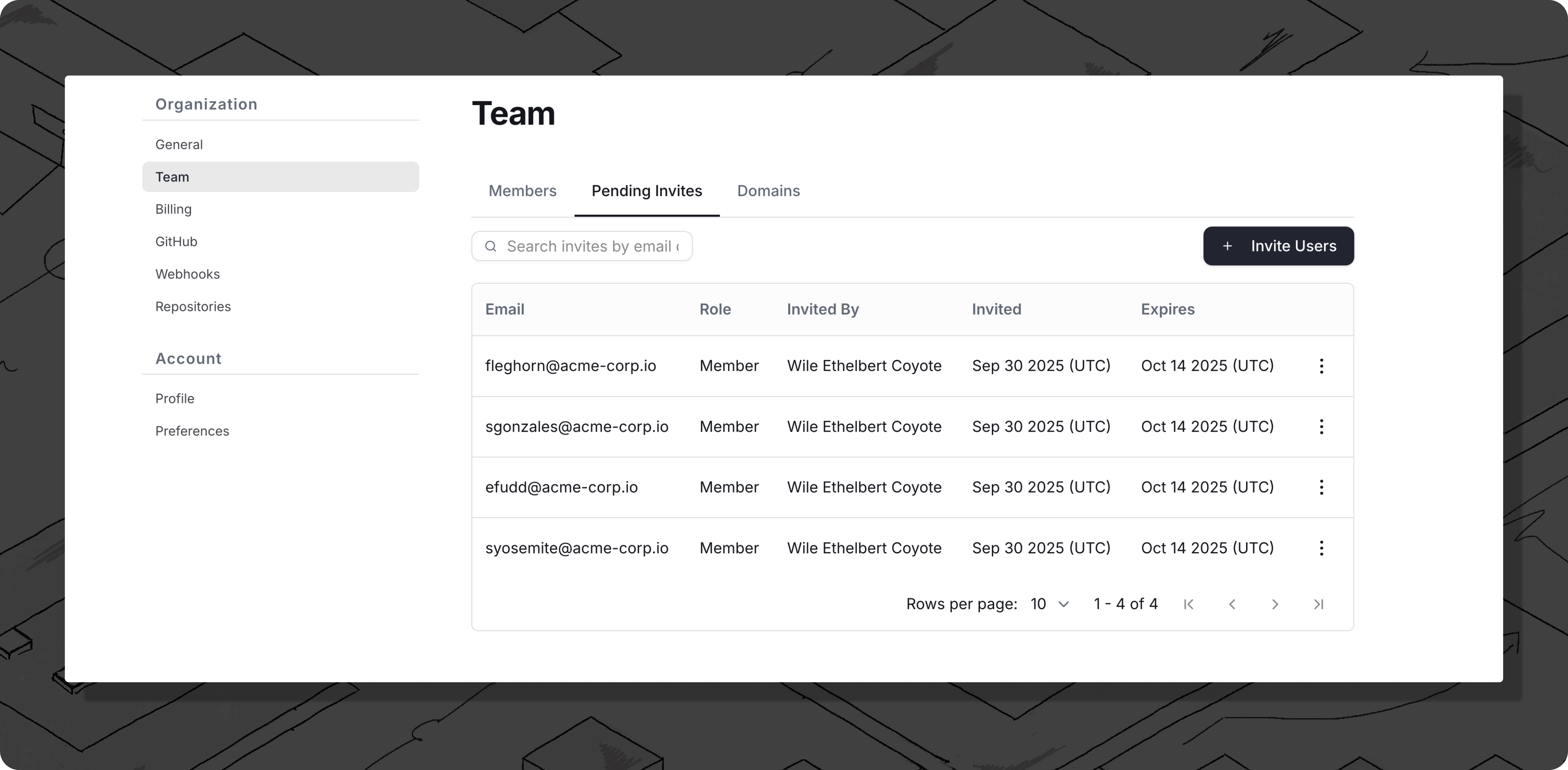
You can view and manage pending email invites by navigating to **Settings** → **Organization** → **Team** → **Pending Invites**.
From this page you can copy the member invite link or revoke the invite using the **three dots** menu.
### Pending Invites
You can view and manage pending email invites by navigating to **Settings** → **Organization** → **Team** → **Pending Invites**.
From this page you can copy the member invite link or revoke the invite using the **three dots** menu.
 ### Verified domain auto-join and pending invites
If your organization uses verified-domain auto-join (any user with a matching email domain is automatically added), a pending invite's role takes precedence over the default Member role. When a user signs in for the first time and a pending invite exists for their email address, they join with the invited role (for example, Admin) and the invite is marked accepted.
If a user was already auto-joined as a Member before a higher-role invite was sent, re-clicking the invite link upgrades their membership to the invited role rather than producing an error.
Trunk also supports SSO login. If you wish to use SSO, please contact us at [support@trunk.io](mailto:support@trunk.io).
***
## Leaving an Organization
You can remove yourself from an organization at any time by navigating to **Settings** → **Organization** → **General** and clicking **Leave Organization**.
A confirmation dialog will appear. Once you leave, you lose access to the organization's settings, repositories, and test data. Another member can invite you back if needed.
**If you are an admin**, the **Leave Organization** button appears in the **Danger Zone** section at the bottom of the General settings page alongside the **Delete Organization** option.
**If you are not an admin**, the **Leave Organization** option appears as a standalone card outside the Danger Zone section.
### Verified domain auto-join and pending invites
If your organization uses verified-domain auto-join (any user with a matching email domain is automatically added), a pending invite's role takes precedence over the default Member role. When a user signs in for the first time and a pending invite exists for their email address, they join with the invited role (for example, Admin) and the invite is marked accepted.
If a user was already auto-joined as a Member before a higher-role invite was sent, re-clicking the invite link upgrades their membership to the invited role rather than producing an error.
Trunk also supports SSO login. If you wish to use SSO, please contact us at [support@trunk.io](mailto:support@trunk.io).
***
## Leaving an Organization
You can remove yourself from an organization at any time by navigating to **Settings** → **Organization** → **General** and clicking **Leave Organization**.
A confirmation dialog will appear. Once you leave, you lose access to the organization's settings, repositories, and test data. Another member can invite you back if needed.
**If you are an admin**, the **Leave Organization** button appears in the **Danger Zone** section at the bottom of the General settings page alongside the **Delete Organization** option.
**If you are not an admin**, the **Leave Organization** option appears as a standalone card outside the Danger Zone section.